

Quickstart with Claude
Connect Claude to Pliant in about five minutes. This walkthrough covers Claude.ai, Claude Desktop and mobile. For other tools, see Set Up by AI Tool.
A Pliant admin does steps 1 and 2 once for the organization. Every member then does steps 4 and 5.
Set up with one prompt
Paste this into a new Claude chat and Claude walks you through every step:
Set up Pliant MCP for me. Fetch https://customer-api.getpliant.com/docs/mcp-agent-setup.md and follow it.1. Turn on the Pliant MCP module
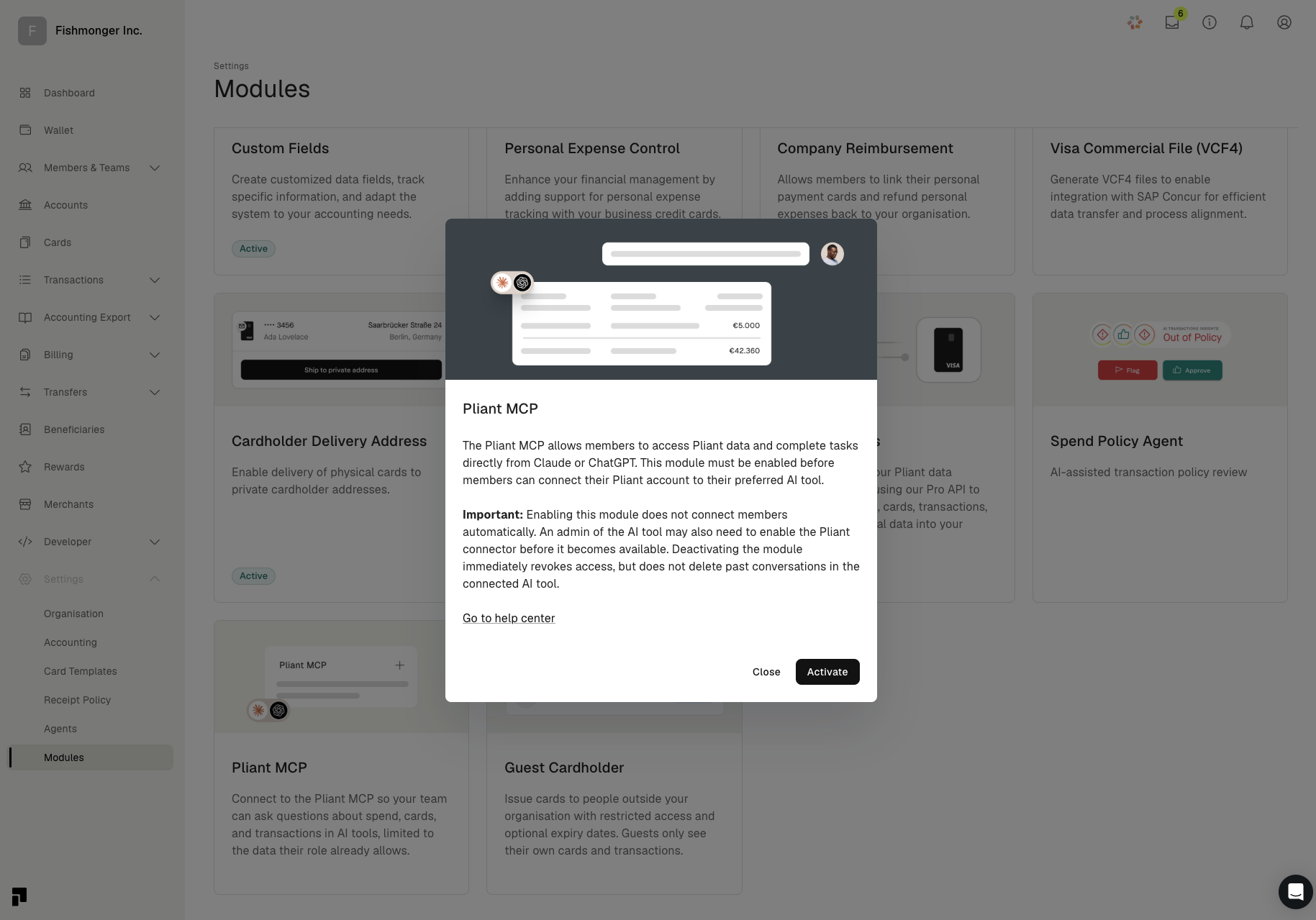
In Pliant, open Settings > Modules, click the Pliant MCP tile and click Activate. The tile then shows Active.
2. Copy the server URL and credentials
Open Developer > MCP and pick Claude from the dropdown. Copy the Server URL, the Client ID and the Client Secret. Owners and admins see this page. If you can't find it, ask one of them or contact Pliant support.
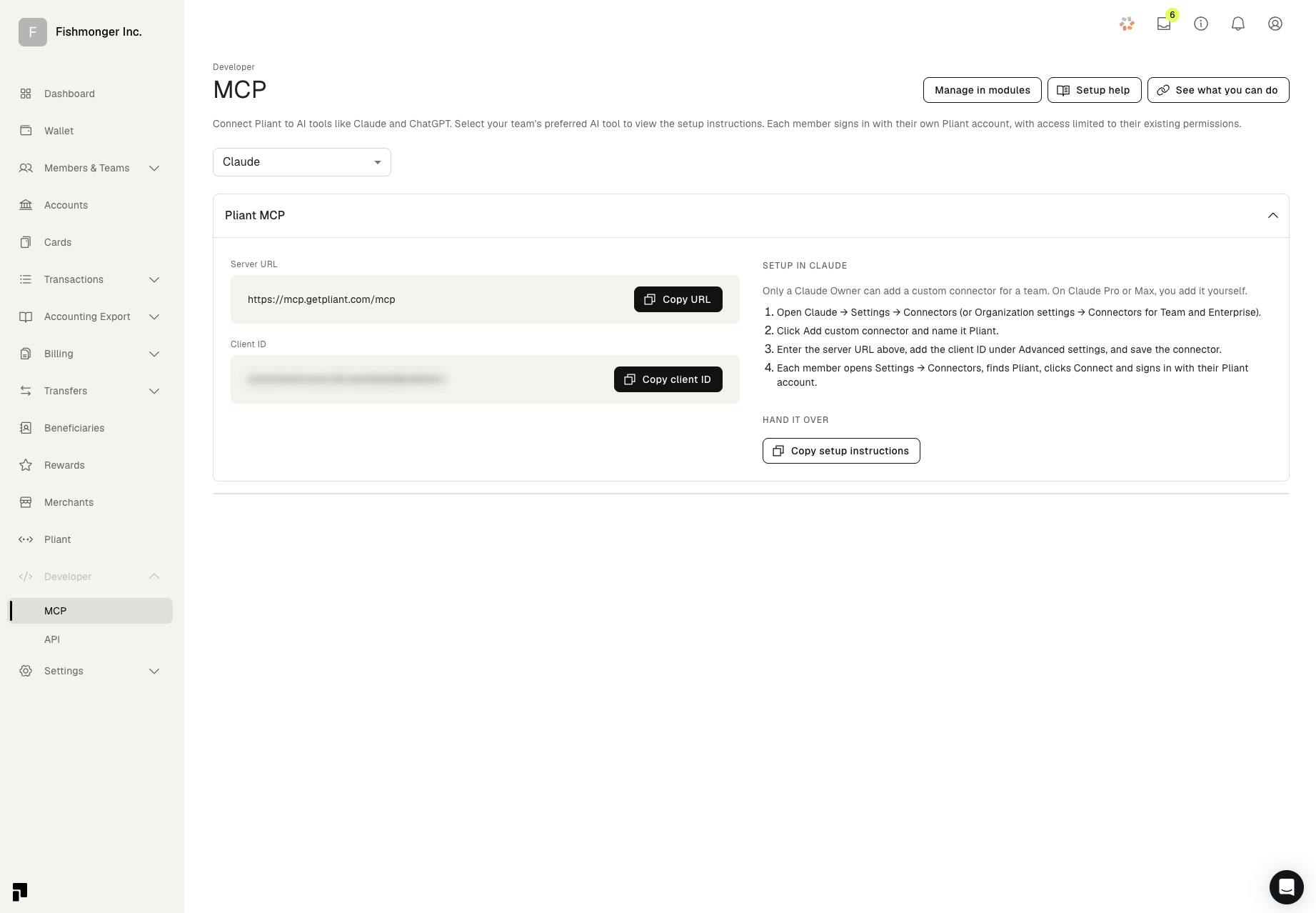
Keep the Client Secret privateTreat it like a password. Paste it only into Claude's connector settings, never into a chat, a ticket or a shared document.
3. Add Pliant as a custom connector
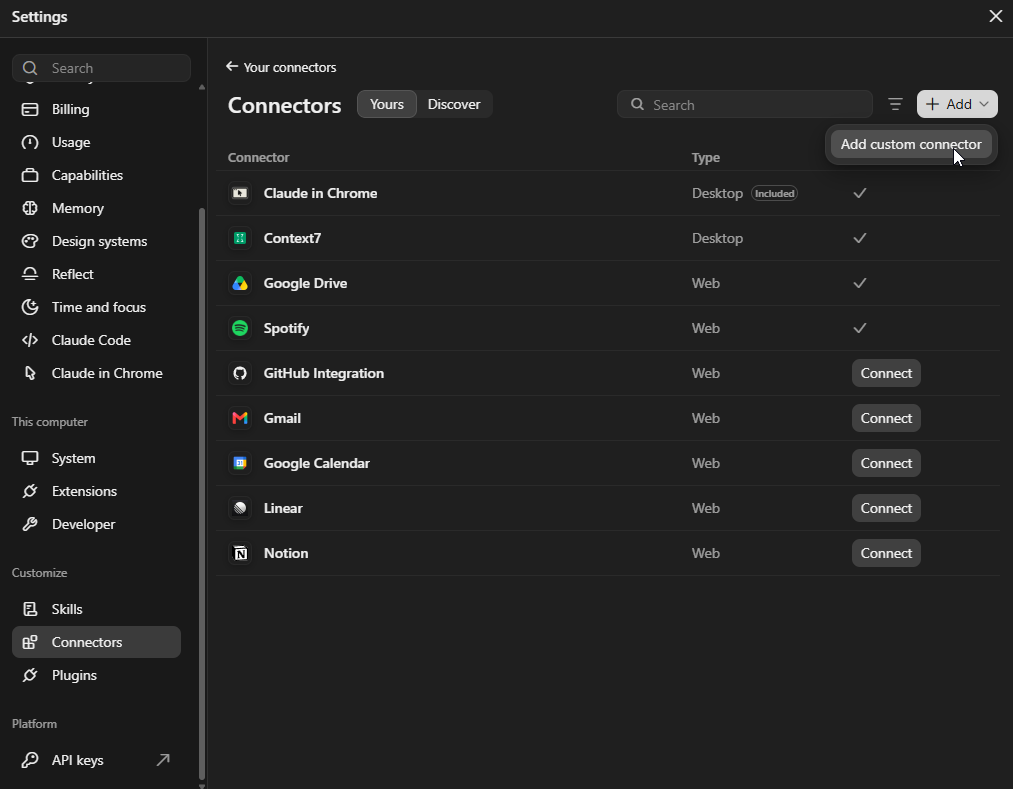
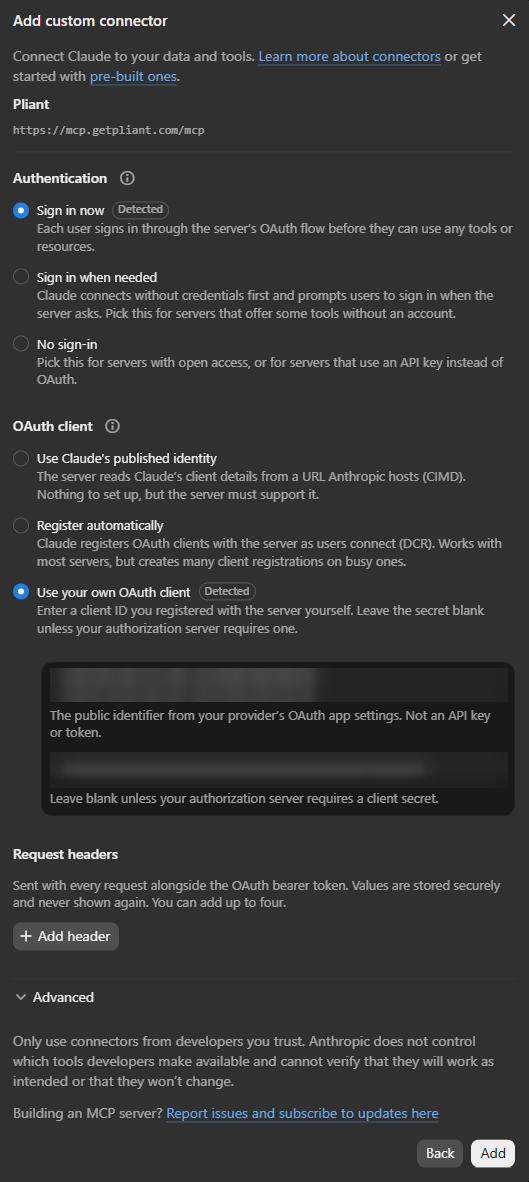
On Team or Enterprise, a Claude Owner does this once in Organization settings > Connectors. On Pro or Max, open Settings > Connectors yourself. Click Add, then Add custom connector.
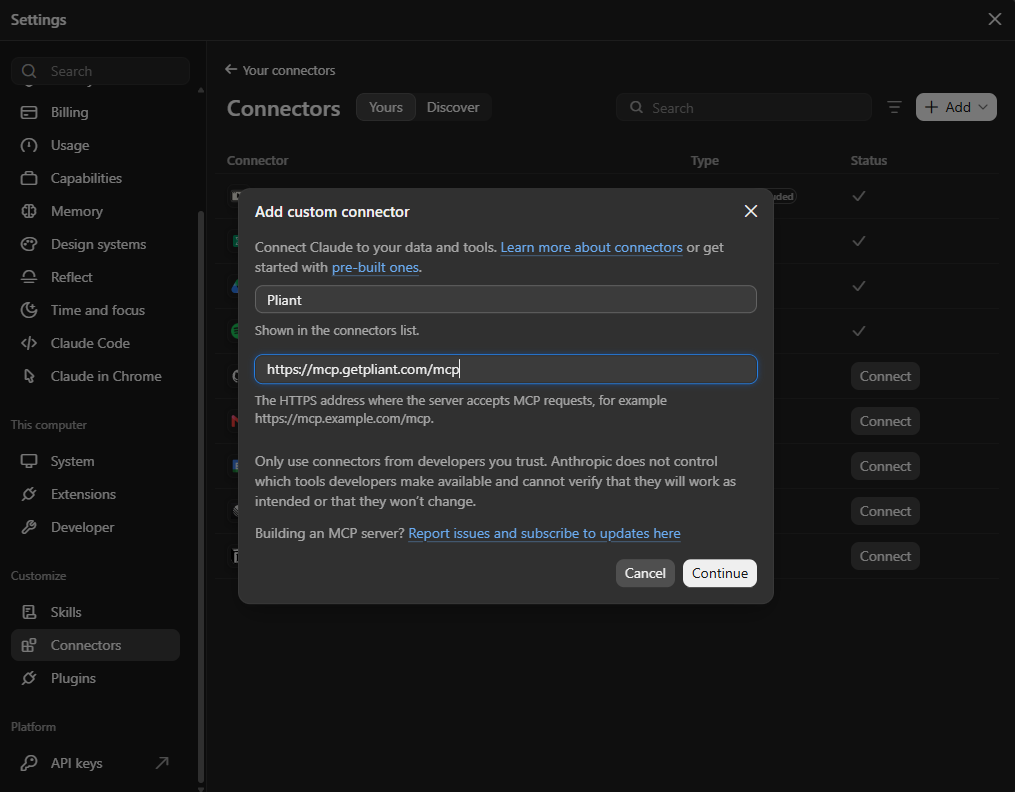
Name it Pliant, paste the server URL and click Continue.
Keep Sign in now and Use your own OAuth client. Paste the Client ID and the Client Secret, then click Add.
4. Connect and allow access
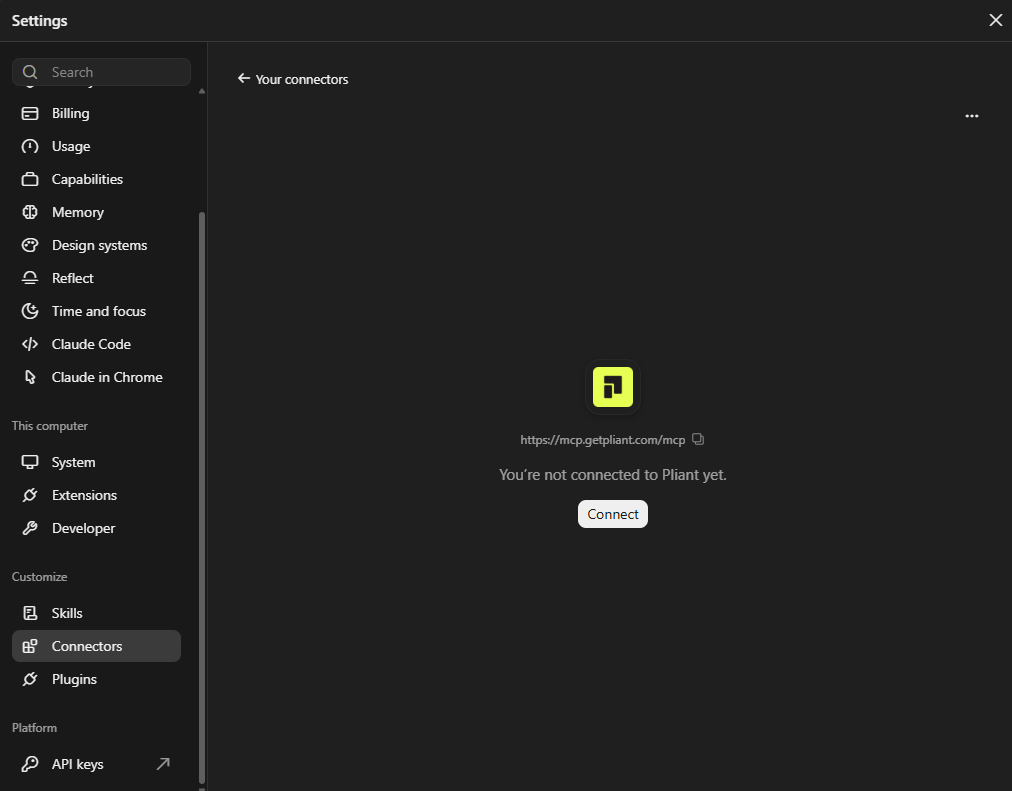
Each member opens Settings > Connectors, opens Pliant and clicks Connect.
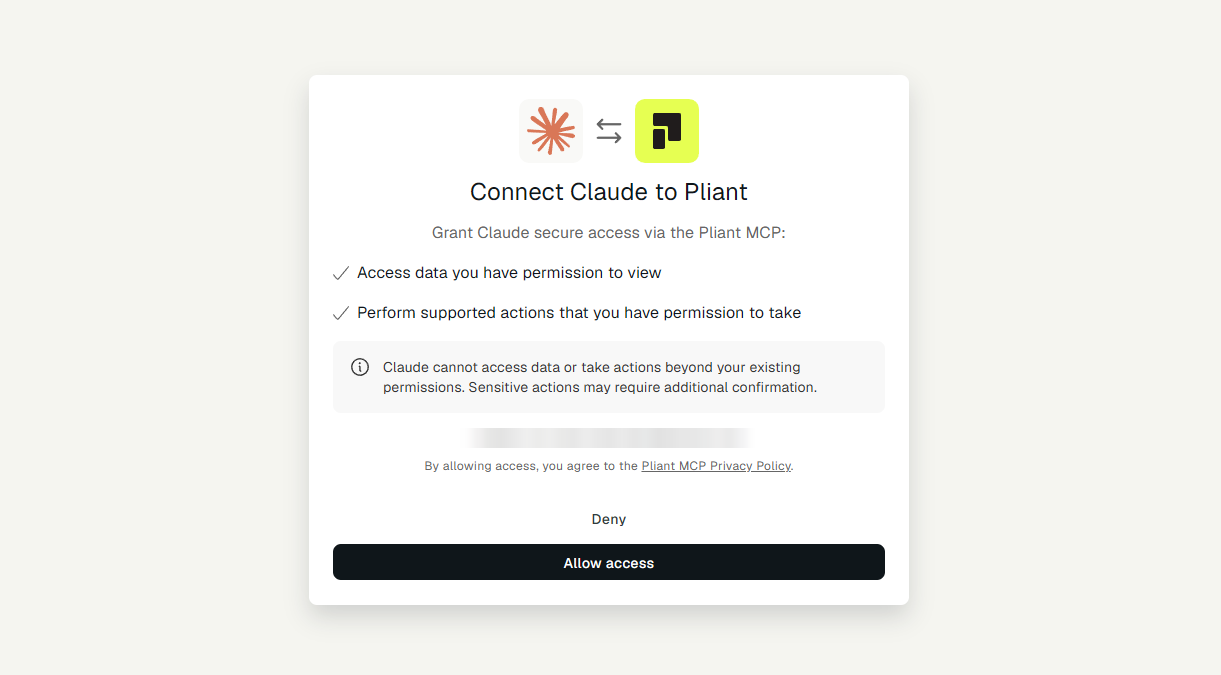
Sign in with your Pliant account and click Allow access. Claude gets exactly the permissions your Pliant role already has.
5. Ask your first question
In a new chat, turn on Pliant from the tools menu and try:
- "What can Pliant MCP do for me?"
- "Which of my transactions from this month are missing a receipt?"
- "What did we spend on software last quarter, by merchant?"
Claude asks for your approval before it changes anything in Pliant.
Related
Updated about 5 hours ago